teket offers two types of tickets: QR tickets and mobile-only tickets.
QR ticket: Show the QR code at the reception desk.
Mobile-only ticket: Log in to teket and show your ticket on screen (no QR code is displayed).
How to display your QR ticket
Via the "Ticket purchase confirmation" email
After your purchase, a confirmation email will be sent to your registered email address. For guest purchases, it will be sent to the email address entered during checkout.
Show the QR ticket included in the purchase confirmation email at the reception desk when entering.
You can also print the PDF ticket attached to the purchase confirmation email and use it for admission. If you print it, show the printed ticket at the reception desk.
Tap the PDF ticket attached to the purchase confirmation email to download it.
* If you paid via Konbini, the purchase confirmation email will arrive about 2 hours after you complete payment at the store.
Via My account on teket (registered members only)
You can display your ticket in My account by tapping "View your ticket on teket" in the purchase confirmation email, or by logging in to teket from the homepage ( https://teket.jp/ ).
How to check your ticket after logging in to My account
1. Tap the menu icon (three lines) in the top-right of the screen.
2. Select "My tickets".
3. Select the event you are attending and tap "View ticket".
4. Show the displayed QR ticket to the event staff.
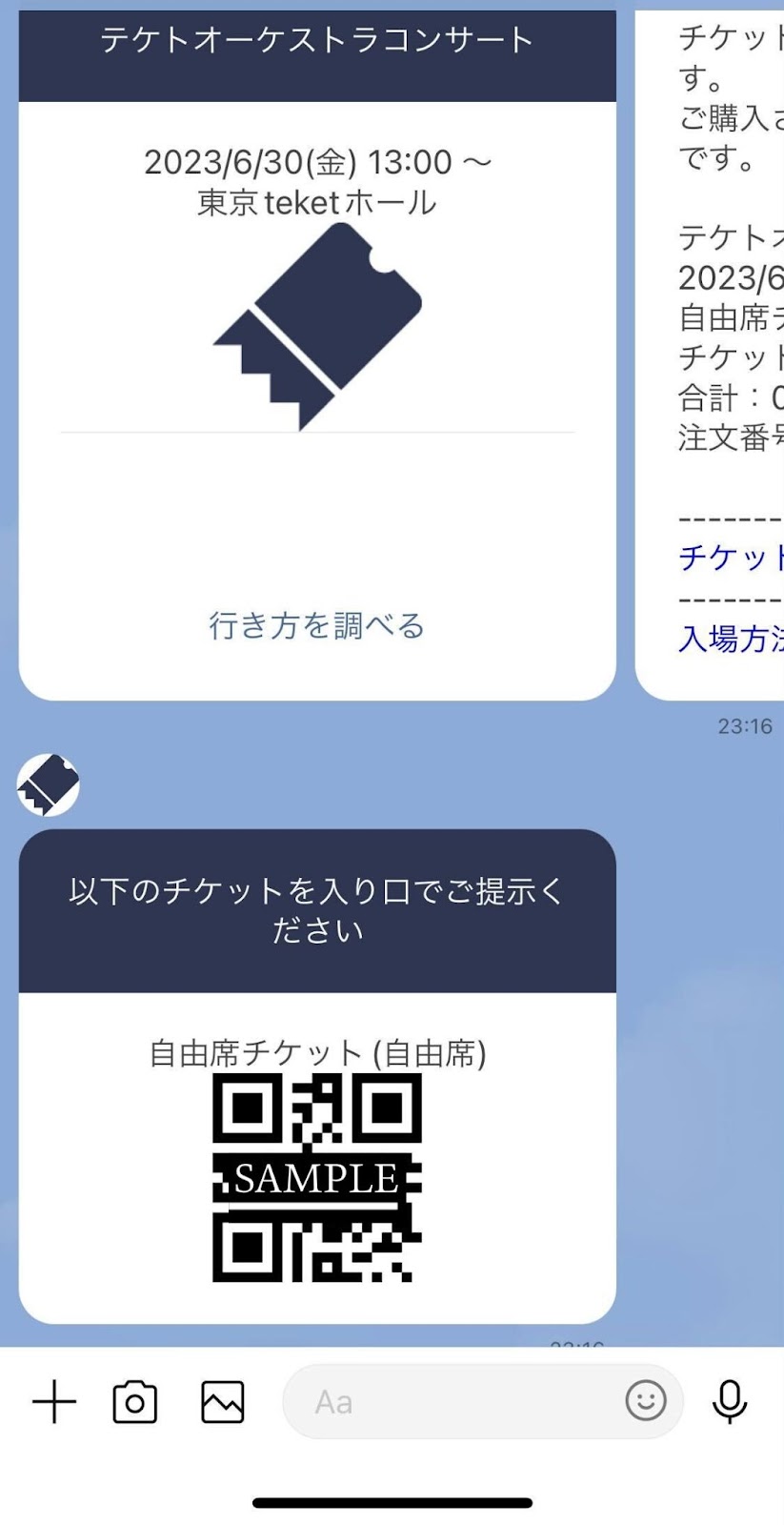
How to check your ticket via LINE (only if LINE is linked in advance)
For details on linking LINE, see "Link your LINE account".
1. After you purchase your ticket, the ticket details are sent to teket's LINE account.
2. The first message displays the event details for your purchase.
3. The second message displays the QR ticket. Show this to the event staff.
How to use mobile-only tickets
Tickets labeled "Smartphone log-in required for entry” on the purchase page are "mobile-only tickets".
Mobile-only tickets do not include a QR code. Log in to teket to display your ticket.
At entry, the event staff will tap the button to check you in.
Displaying your ticket on teket
1. Log in to teket.
2. Tap the menu in the top-right.
3. Tap "My tickets".
4. Tap "View ticket".
5. Tap "Check in".
6. Show the screen below to the event staff. The event staff will tap "Mark as entered" to complete your check-in.
Displaying your ticket on purchase confirmation email
1. Open the email you received when you purchased your ticket and tap "View your ticket on teket".
2. Enter the email address and password you registered with when purchasing, and tap "Log in".
3. Once logged in, your ticket is displayed. Tap "Check in"..
4. Show the screen below to the event staff.
The event staff will tap ""Check in"." to complete your check-in.
* QR Code is a registered trademark of DENSO WAVE INCORPORATED.